
How I Use PromptClip Every Day: A Real Workflow Guide
By Karina Gimranova
13 Min Read
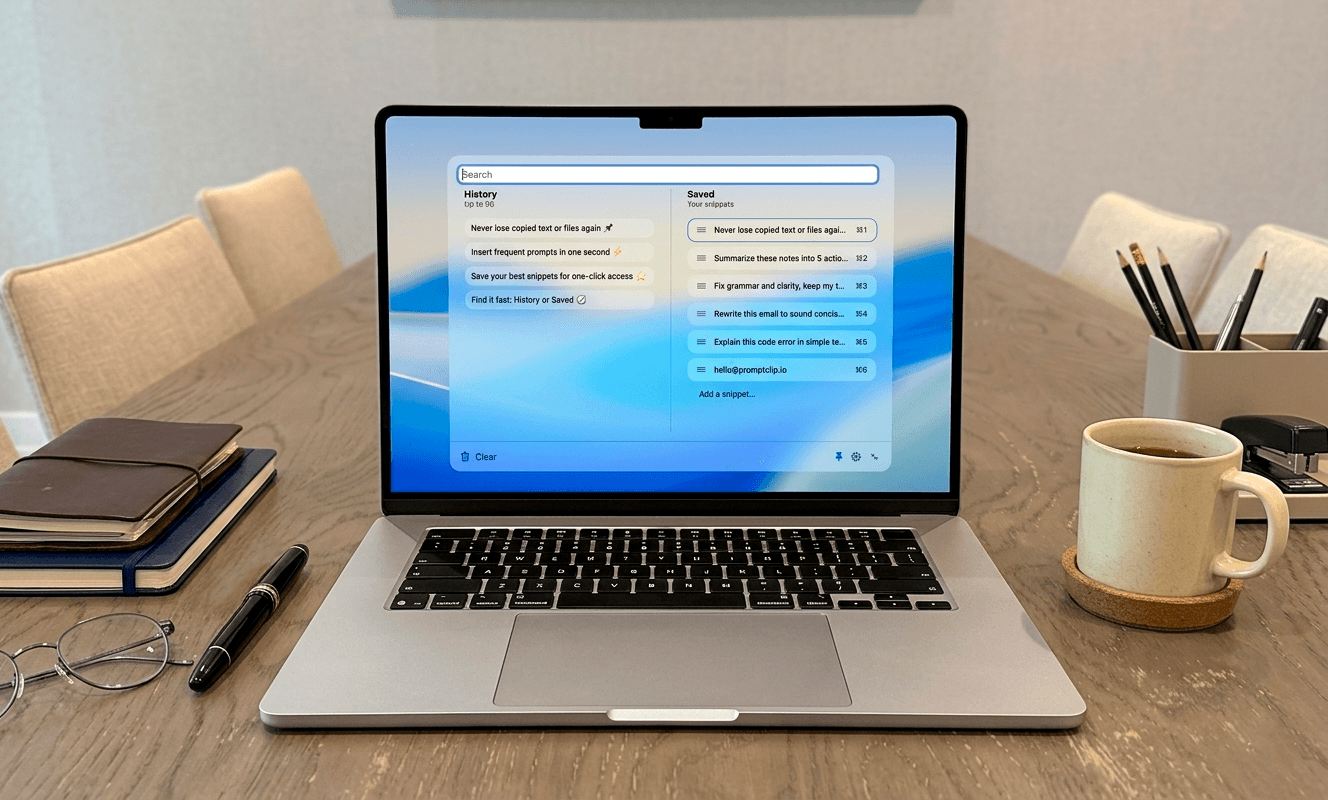
I built PromptClip because I was retyping the same things dozens of times a day. Now I use it every day in my actual work - global business development, outreach across multiple languages, constant communication across channels.
This is not a generic "10 tips" article. This is exactly how I have it set up, what I keep in my saved snippets, and how to get the most out of it from day one.
My Setup: What I Keep in ⌘1–⌘8
The saved snippets panel is the core of PromptClip for me. These eight slots are assigned to the text I reach for most - things I used to retype from memory or hunt down from old chat windows.
Here is exactly what I have saved:
⌘1 — Grammar and clarity check This is my most-used snippet by far. I work across multiple languages daily and every external message gets a pass through this prompt before it goes out:
"Check grammar and clarity, make it sound as if a native speaker said it, while adhering to the original tone of voice. Should be smooth and clear, without redundancies or repetitions."
I paste this into Claude or ChatGPT dozens of times a day. Before PromptClip I was retyping it from memory - never quite the same wording, never quite as precise.
⌘2 — My work email address Simple but saves real time. I type my email address into forms, introductions, signatures, and messages constantly. One keystroke instead of typing it every time.
⌘3 — Cold outreach template My go-to opening for new partnership outreach. Refined over months to the exact structure and tone that consistently gets responses. Before PromptClip it lived in a draft email I kept open - now it is one shortcut away from any app.
⌘4 — Follow-up after a meeting A short, professional follow-up template I send within 24 hours of any call or meeting. Something like:
"Great speaking with you today. Following up as promised — [key point discussed]. Happy to answer any questions or jump on another call whenever works for you."
Fill in one detail, send. Consistent, professional, fast.
⌘5 — LinkedIn connection message A short personalised opener I adapt for each new connection. Having the base template ready means I actually send connection messages instead of skipping it because it feels like too much effort.
⌘6 — Summarise into key points
"Summarise this into 5 key action points. Be concise, no fluff."
I use this constantly when processing long emails, reports, or meeting notes through AI tools.
⌘7 — One-paragraph company pitch A clean, current version of how I describe what I do and who I work for. Useful for introductions, bios, event registrations - anywhere you need to describe yourself quickly.
⌘8 — Translate and adapt tone
"Translate this into [language] and adapt the tone to sound natural and professional for a business context in that market."
Working across markets means this one gets used more than most people would expect.
How I Actually Use It Day to Day
The workflow is simple enough that it becomes invisible after a few days.
Opening PromptClip — I have it set to a global shortcut. From any app, any browser tab, any context - one keypress and it is there. I never touch the menu bar icon.
Using saved snippets — For the eight slots above, I do not even open the search. I press my shortcut, then ⌘1 through ⌘8, and the snippet is copied instantly. Back to work in under two seconds.
Using clipboard history — When I need something I copied recently but did not save, I open PromptClip and start typing a word from it. It appears immediately. No scrolling, no digging.
Saving new snippets — When I write something that works well — a new outreach angle, a prompt that consistently delivers - I open PromptClip and drag it from history into Saved. Takes five seconds. That text never disappears again.
How to Get Set Up in the First 15 Minutes
If you just downloaded PromptClip, here is the fastest way to get value from it:
Step 1 — Set your global shortcut first. This is the most important thing. Go to Preferences and choose a shortcut you will actually remember. I use one that does not conflict with anything else I use daily. The shortcut is how you get back into the app - especially important because on Mac the menu bar icon can get hidden behind other icons or the notch.
Step 2 — Fill your first three snippet slots. Do not try to organise everything at once. Just think of the three things you type most often - your email address, your most-used AI prompt, your most common message template - and save those first. Assign them ⌘1, ⌘2, ⌘3.
Step 3 — Use it for one full day before changing anything. Let the clipboard history build up. By the end of the day you will notice which things you kept reaching for - those are your next snippets to save.
Step 4 — Add one new snippet per week. The best snippet libraries are not built in one session. They grow naturally as you notice what you retype. Every time you think "I have written this before" - that is a signal. Save it.
The Mindset Shift That Makes It Work
The biggest difference between people who get a lot out of PromptClip and people who do not is how they think about their text.
Most people treat written text as disposable - you write it, you use it, you move on. The prompt you just spent ten minutes refining, the follow-up message that finally got a response, the pitch paragraph that landed well - these are assets. They took time and iteration to get right.
PromptClip is only as useful as what you put in it. The copy history works automatically - you do not have to think about it. But the saved snippets require a small habit: when something works, save it.
Once that habit is in place, the time savings compound quickly. Not in dramatic ways - in the small, repeated moments that make up most of a workday.
Download PromptClip
14-day free trial, no credit card needed. One-time $9.99 after trial - no subscription, no renewal.