
How to Clear Clipboard on Mac
By Kirill Mirgorod
9 Min Read
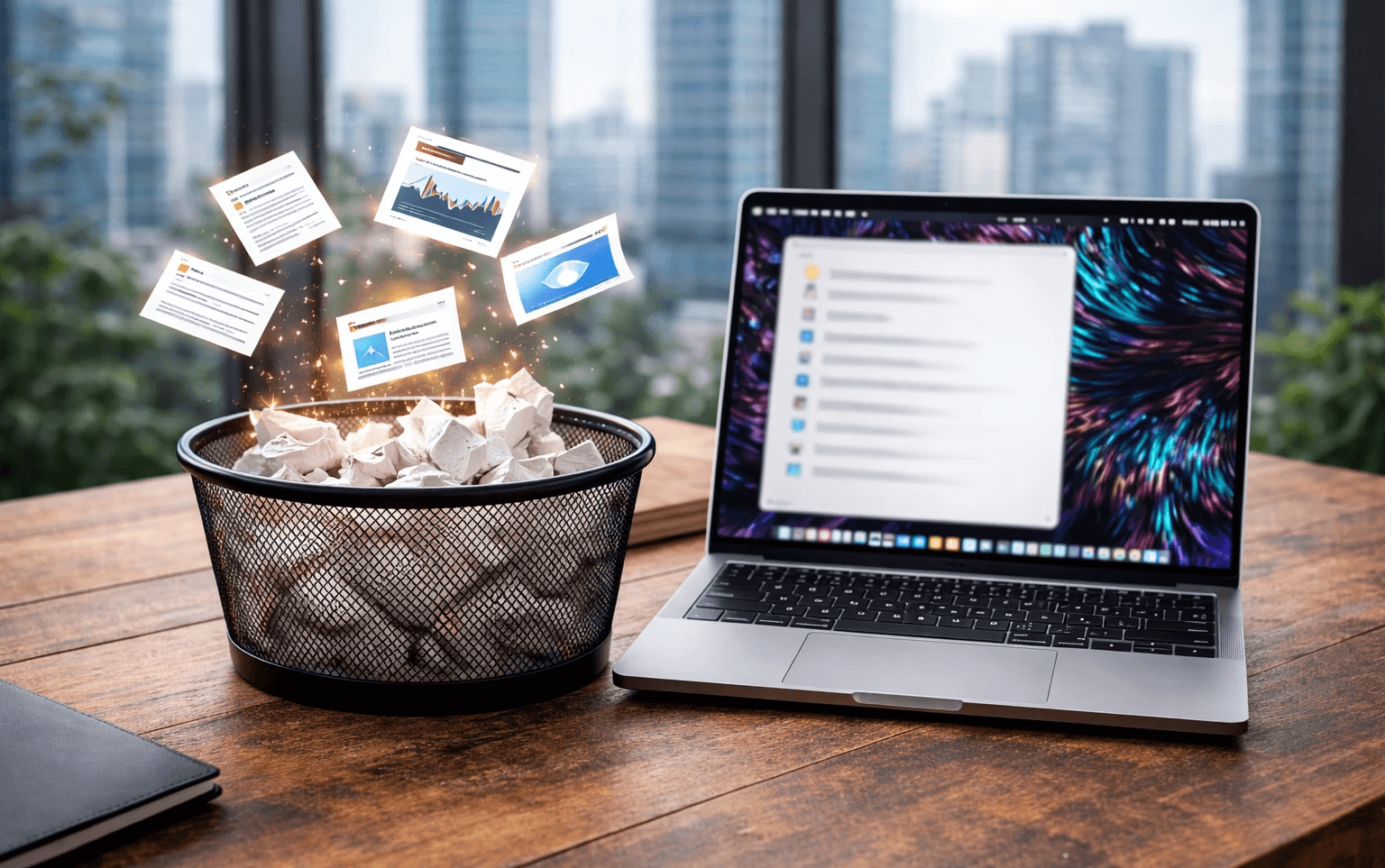
Sensitive data on your clipboard — a password, a client email, confidential text — is a real privacy risk, especially on a shared Mac. Here are three ways to clear it, from the simplest to the most thorough.
Method 1 — Copy Something Else (Fastest)
The simplest way to clear your clipboard is to copy any small piece of text.
Open any app — Notes, TextEdit, even your browser address bar
Select a single space or any character
Press ⌘C
Your clipboard now contains that empty character instead of whatever was there before. Takes three seconds.
Method 2 — Terminal Command (Most Thorough)
If you want to completely empty the clipboard rather than replace it:
Open Finder → Applications → Utilities → Terminal
Type this command and press Enter:
pbcopy < /dev/null
The clipboard is now completely empty. Nothing is stored at all.
Method 3 — Restart Your Mac
Restarting your Mac clears all temporary memory including clipboard contents. Go to Apple menu → Restart.
Use this only if the other methods don't work — it's the slowest option.
How to View What's on Your Clipboard Before Clearing
Before clearing, you can check what's currently stored:
Click on an empty area of your desktop to activate Finder
In the menu bar click Edit → Show Clipboard
You'll see the current clipboard content. If it's sensitive — use one of the methods above.
The Smarter Approach: Manage What Stays, Not Just What Goes
Clearing the clipboard solves one problem — but it creates another. Every time you clear, you also lose everything useful you copied today.
A clipboard manager like PromptClip gives you full control:
Clear history with one click — remove everything at once when needed
Pinned snippets stay protected — clearing history doesn't delete your saved prompts and templates
Privacy by design — everything stored 100% locally on your Mac, nothing sent to any server
So instead of a binary choice between "keep everything" and "delete everything" — you choose exactly what stays.
Frequently Asked Questions
What is the keyboard shortcut to clear clipboard on Mac? There's no built-in keyboard shortcut to clear the clipboard on Mac. The fastest method is to copy a single space with ⌘C. If you use PromptClip, you can clear history directly from the app with one click.
Does restarting Mac clear clipboard? Yes. Restarting your Mac clears all temporary memory including clipboard contents. However note that clipboard managers like PromptClip store history separately — restarting clears the system clipboard but not your saved snippets.
How do I clear clipboard on Mac without Terminal? Copy any small piece of text — a single space or character — with ⌘C. This replaces whatever was on the clipboard. No Terminal needed.
Is clipboard data a privacy risk on Mac? Yes, if your Mac is shared or if an app has clipboard access. Sensitive data like passwords or personal information can remain on the clipboard until replaced. Clear it after copying sensitive content, or use a clipboard manager that lets you control what gets stored.