
Where Is the Clipboard on Mac - and How to Get More From It
By Karina Gimranova
5 Min Read
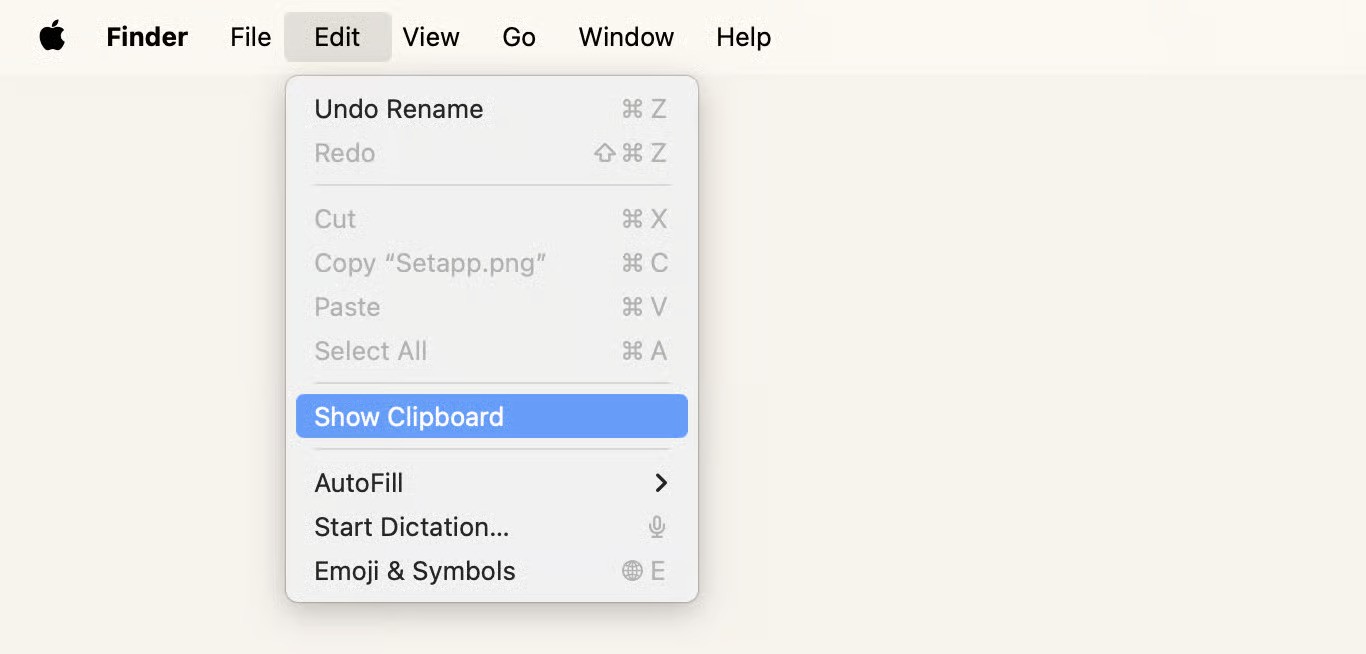
The clipboard on Mac is invisible by default. There's no app icon, no folder, no obvious place to look. Here's exactly where it is and what you can do with it.
Where Is the Clipboard on Mac?
The clipboard lives in your Mac's memory — not in a file or folder you can browse. It temporarily stores the last item you copied until you copy something else or restart your Mac.
To view what's currently on your clipboard:
Click anywhere on your desktop to activate Finder
In the menu bar click Edit → Show Clipboard
This shows your most recently copied item — text, image, or file.
The Problem: Mac Clipboard Only Holds One Item
This is the core limitation. Every time you press ⌘C, the previous item is gone. No history, no recovery.
Feature | Mac Default Clipboard | PromptClip |
|---|---|---|
Items stored | 1 | Unlimited |
Clipboard history | ❌ | ✅ |
Search | ❌ | ✅ |
Pinned snippets | ❌ | ✅ |
Keyboard shortcuts | ❌ | ✅ ⌘1–⌘8 |
Local storage | ✅ | ✅ |
How to Access Full Clipboard History on Mac
Starting with macOS 26 Tahoe there's a basic clipboard history in Spotlight:
Press ⌘ Space to open Spotlight
Press ⌘4 to switch to Clipboard History
For power users this isn't enough — no pinned snippets, no shortcuts, limited history.
PromptClip gives you full clipboard history with instant search and ⌘1–⌘8 shortcuts to paste any saved snippet in one keystroke.
Frequently Asked Questions
Where is the clipboard folder on Mac? There is no clipboard folder. The clipboard is stored in RAM, not on disk. You can view the current contents via Finder → Edit → Show Clipboard.
How do I open clipboard on Mac? Finder → Edit → Show Clipboard shows the current item. For full history use PromptClip or macOS Tahoe's Spotlight clipboard (⌘ Space → ⌘4).
Does Mac save clipboard history? By default no — Mac saves only the last copied item. macOS 26 Tahoe added basic history via Spotlight. For unlimited history use a clipboard manager like PromptClip.